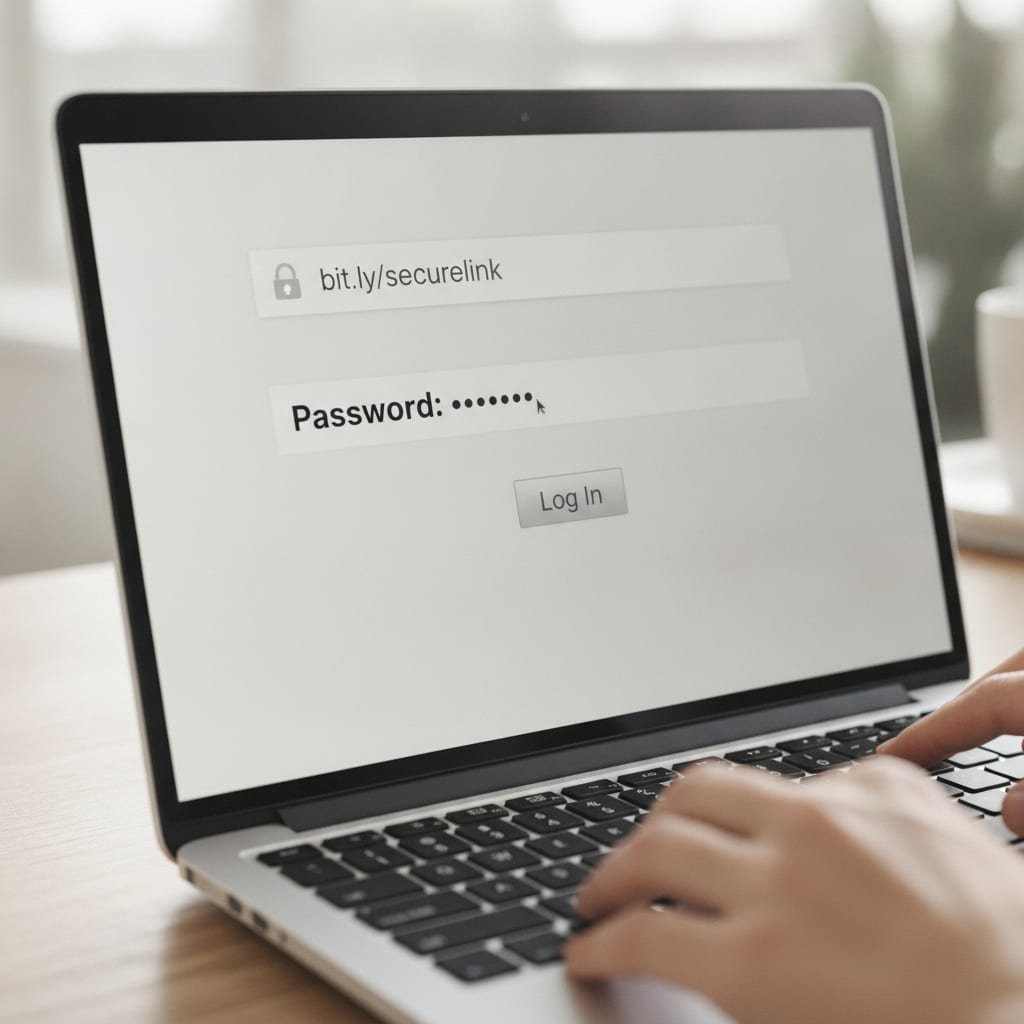
Password protected links are URLs that ask a visitor to enter a passcode before they load, but the distinction that actually matters is where that check happens — in the visitor's browser, or on a server you control. A client-side password (checked in JavaScript) can be bypassed by anyone who opens the page source; a server-side check cannot. If the link guards anything sensitive, that difference decides whether you have security or just an inconvenience.
TL;DR:
- A password on a link is a gate in front of the door, not a lock on the door — it doesn't encrypt whatever it's protecting.
- Client-side password checks (pure JavaScript) can be defeated with the browser's developer console; server-side checks can't.
- HTTPS is the only safe transport for a password field — HTTP sends the password and destination in plain text.
- Free password-link tools usually store your password and click data on their server, and the link dies if you cancel or they shut down.
- Cloud storage tools like Google Drive or SharePoint have built-in password/expiry sharing, but they're built for single documents, not branded marketing links or QR codes.
Table of Contents
- What a Password-Protected Link Actually Locks (and What It Doesn't)
- How to Open a Locked Link When You Don't Have the Password
- How to Build a Secure Link, Step by Step
- HTTPS or HTTP: Which One Actually Protects the Password You Just Set
- Free Password Protection Tools, and the Corners They Cut
- Password Links Inside Google Drive, SharePoint, and Other File Shares
- The Real Trade-off: A Password Gate Is Not a Vault
- Get Password-Protected Short Links You Actually Own
- Frequently Asked Questions
- Sources
What a Password-Protected Link Actually Locks (and What It Doesn't)

A password-protected link is a URL that requires a visitor to type a passcode before it redirects to, or reveals, whatever is on the other side. That's the whole mechanism — a gate in front of a door, not a lock on the door itself. If the destination is a publicly-viewable file, a password on the link does nothing to stop someone who finds that file's real URL through another route, a search index, a forwarded email, or a cached page. The password only ever guards the one entry point you built it for.
Client-side checks
Many free tools generate the password check entirely in JavaScript, inside the reader's browser. The page loads, the script compares whatever the visitor typed against a stored value (sometimes encoded, rarely encrypted), and if it matches, the script reveals the destination URL that was sitting in the page all along.
Server-side checks
A server-side check works differently: the browser sends the attempted password to a server, the server compares it against a value it holds, and only then does it respond with the destination. The visitor's browser never has access to the real target until the server decides to hand it over.
A password box written entirely in client-side JavaScript can be defeated by opening the browser's developer console and reading the redirect target in plain text. No cracking required — just View Source.
This is the gap the OWASP Foundation's web security testing guidance flags repeatedly: client-side validation is a usability feature, not a security control, because anything sent to the browser can be read and manipulated by whoever controls that browser.
How to Open a Locked Link When You Don't Have the Password

The legitimate path is simple: go back to whoever sent you the link and ask for the passcode, which is usually delivered separately by text, a follow-up email, or a phone call, precisely so the two pieces never travel together. If the sender used a hosted tool, check whether they set an expiration — some password links stop accepting any password at all once a window closes, and no amount of correct typing will open them.
What you should not do is search for a "bypass" tool. Most of what turns up exploits the exact client-side flaw described above, and if it works on a link you were never given the password to, that's not a workaround, it's unauthorized access to whatever sits behind it. Google's Safe Browsing program specifically flags pages that redirect through unexpected password prompts as a common phishing pattern, so a link demanding a password you never requested, from a sender you weren't expecting, is a reason to close the tab, not a puzzle to solve.
Pro Tip: If you manage links for a team, don't reuse the same password across every protected link you send out. Senders routinely forward the link and its password in the same email thread, which means that one password ends up sitting in a dozen inboxes within a week. Rotate passwords per campaign or per recipient the way you'd rotate an API key, and run any password you're about to reuse through Have I Been Pwned first — if it's already in a breach dump, it's not doing the job you think it is.
How to Build a Secure Link, Step by Step

- Pick where the check will run. Server-side beats client-side every time a password is protecting anything more sensitive than a birthday party address.
- Set the password length, not the complexity rules. NIST's Digital Identity Guidelines (SP 800-63B) recommend allowing passwords up to 64 characters and dropping forced special-character requirements — length beats a mandatory symbol every time.
- Add an expiration. A password that still works six months later is a password someone forwarded to a person you never intended to see it.
- Log attempts, not just successes. Repeated failed tries against one link are the first sign someone is guessing rather than typing.
- Confirm the destination itself is on HTTPS. A password gate in front of an HTTP page still lets the actual content travel unencrypted after the gate opens.
HTTPS or HTTP: Which One Actually Protects the Password You Just Set
HTTPS is the only safe choice, and it isn't close. HTTP sends everything — the page content, form fields, and yes, the password someone types into your gate — as plain text that any device on the same network path can read. HTTPS encrypts that traffic end to end using TLS, so the password and destination stay unreadable in transit even if the network itself is compromised.
Google's Chrome team removed the padlock icon from the address bar in 2023, telling users flatly that a lock only ever meant "encrypted," never "trustworthy."
That distinction matters for password links specifically: HTTPS proves the connection is private, not that the page behind the password is safe or legitimate. With free certificates from the nonprofit Let's Encrypt available to any site owner, there's no remaining excuse for a password-protected page to sit on plain HTTP — treat any http:// link asking for a password as a hard stop.
Free Password Protection Tools, and the Corners They Cut
Free password-link generators are genuinely useful for a one-off share — sending a single file to one person, once. Where they cut corners is in exactly the places that don't show up until something goes wrong: the password is often stored on the vendor's server rather than yours, the redirect runs through their generic domain rather than yours, and if you cancel a paid plan or the service shuts down, every link you ever created stops working at once, password or no password.
| Method | Where the check runs | Typical cost | Bypass risk | Best for |
|---|---|---|---|---|
| Browser-only generator (pure JavaScript) | Visitor's browser | Free | High — defeated by viewing page source | A single casual share |
| Hosted link tool, free tier | Vendor's server | Free, paid tiers for more | Low, but vendor holds every password and click log | Marketing links needing quick setup |
| Cloud storage native sharing | Vendor's server | Free with an account | Low | One document, shared internally |
| Self-hosted shortener | A server you control | One-time license | Low, and only you hold the logs | Businesses running many branded links long-term |
Android adds one more wrinkle worth knowing: several client-side password tools store the unlocked state in the browser's local storage so the gate doesn't reappear on every visit. Private or incognito tabs on Chrome for Android routinely clear that storage between sessions, so the same visitor can end up re-entering the password every single time they reopen the link, which reads as a broken tool when it's actually a privacy feature working as designed.
Password Links Inside Google Drive, SharePoint, and Other File Shares
Most major cloud storage platforms already have a version of this built in. Google Drive lets you restrict a shared link to specific people rather than "anyone with the link," and enterprise-focused platforms like SharePoint support link expiration alongside access restrictions for the same reason: a document isn't a marketing asset, it's a liability if the wrong person opens it.
The catch is that these built-in controls are scoped to one file inside one platform. They don't give you a branded domain, they don't track clicks across a campaign, and they don't attach to a QR code the way a dedicated link tool does — if you're already building styled QR codes with a logo for print or packaging, a file-sharing password feature isn't the layer that protects that link.
The Real Trade-off: A Password Gate Is Not a Vault
Every choice here trades convenience for control. A free client-side generator takes thirty seconds and asks nothing of you, but the password is visible to anyone who inspects the page, and the link's fate is tied to a company you don't control. A server-side, self-hosted setup takes longer to configure and asks you to actually run something, but the password check, the click logs, and the link's uptime all answer to you and nobody else.
There's no version of this where you get both for free. The honest question to ask before picking a tool isn't "does it have a password field" — nearly all of them do — it's "where does the password live, and who else can read it?"
Get Password-Protected Short Links You Actually Own
Kortli is a self-hosted link shortener you install on your own Linux server for a one-time payment, and password-protected links are a built-in feature, checked server-side, on infrastructure you control instead of a vendor's. That means the password, the click logs, and the geographic tracking data all sit where you decide, not on a third party's server that can raise its price or shut down. Kortli also handles custom domains, split testing, and logo-embedded QR codes without a recurring fee per link. The honest caveat: it's built for people comfortable running their own server, not for someone who wants a password link generated in a browser tab in thirty seconds — check the spec sheet before you buy if you're not sure which one you are.
Frequently Asked Questions
How do I open a locked link?
Ask the sender for the password, since legitimate senders usually deliver it through a separate message rather than the same email as the link. If the link is expired or you weren't given the password, don't search for a bypass tool — many exploit the same client-side security flaw that makes weak password links unsafe in the first place.
How can I create a secure link?
Choose a tool that checks the password on a server rather than in the visitor's browser, set a password using length rather than forced symbols per NIST's SP 800-63B guidance, and add an expiration date. Make sure the destination page itself runs on HTTPS, since a password gate in front of an unencrypted page still leaves the content exposed after the gate opens.
Which URL is safe, https or http?
HTTPS is the safe option because it encrypts everything sent between the browser and the server, including any password typed into a form. HTTP transmits that same data as plain text, so a password-protected link on an http:// address offers essentially no protection in transit.
What are some free websites that offer password protection?
Several hosted link tools and cloud storage platforms include a free password-protection option, typically limited to a generic shared domain or a single file rather than a branded link. The trade-off is that the password and click data are stored on the vendor's server, and the link stops working if you cancel the account or the service closes down.
Do password-protected links work the same way on Android?
Mostly, but private or incognito browsing on Android often clears the local storage that some tools use to remember an unlocked link, so a visitor may be asked to re-enter the password more often than on desktop. This is usually a privacy setting doing its job rather than a broken link.
Is a password on a link the same as encrypting the file behind it?
No. A password on a link only blocks the one entry point you set it on; it doesn't encrypt the destination content, so anyone who finds that content's direct URL through another route can bypass the password entirely.
Sources
- Digital Identity Guidelines: Authentication and Lifecycle Management (SP 800-63B) | NIST
- Web Security Testing Guide | OWASP Foundation
- Safe Browsing | Google
- Let's Encrypt | Internet Security Research Group
- Have I Been Pwned | Troy Hunt
Leave a Reply